
Filtering widgets: Adding filter options and (pre)filtering events
By default, all upcoming events of a doo organization are displayed in the cross‑event calendar and table widgets, optionally including a search function for bookers that allows keyword, location, and date searches (you can find all general information on this in our article about widgets).
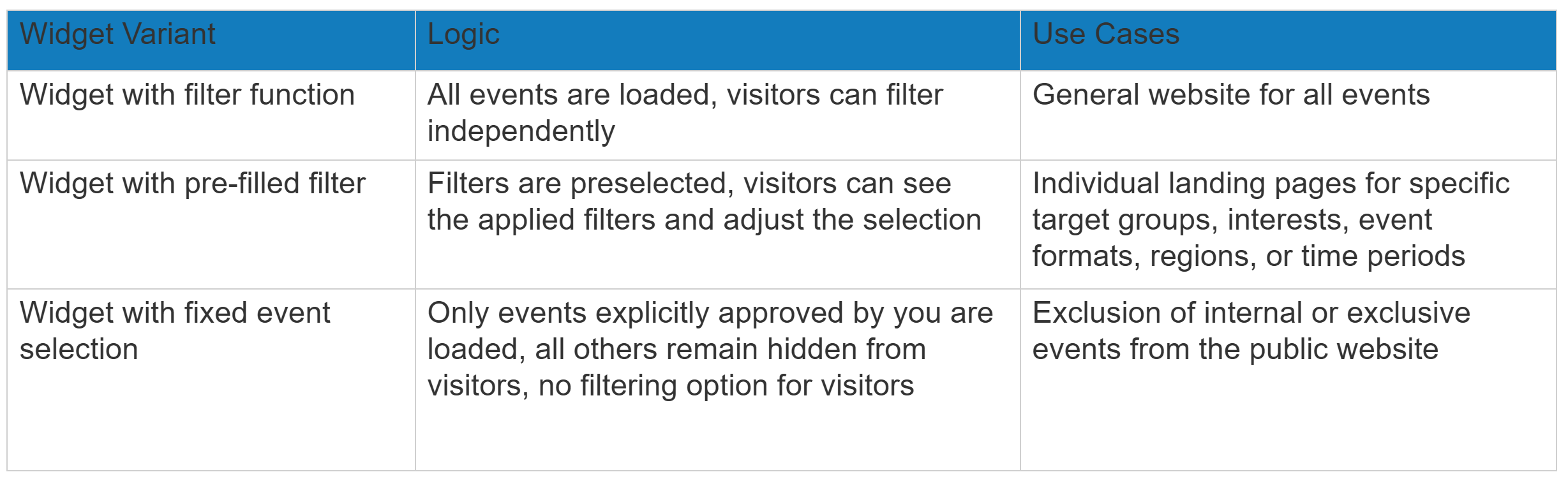
In some cases, the available filters for bookers are not sufficient, or you may want to pre‑filter events in advance. For this purpose, doo offers you three options:
- You can add additional multi‑select filter fields that allow visitors to your pages to filter all events by predefined categories or keywords. Examples include additional filters for event type, trainer, or target group.
- In addition, you can pre‑fill both the standard filters and the additional filters. For example, you can define that visitors are shown a pre‑filtered list of events in Munich when the page is opened. Users can adjust the filter selection themselves and thus also access all other events. This option is particularly suitable if you want to categorize your events by different topics, locations, or target groups and plan different landing pages where only the relevant events should be highlighted.
- A third option is to display only events that you have predefined in the widget, so that visitors can search and navigate exclusively within this list. This option is suitable, for example, for organizers who want to display only their public events in the overview and exclude internal events.
All these customizations are implemented in the widget code and require that event fields are created in advance to assign the events accordingly. You can find more information on embedding, customizing, and pre‑populating widgets in our technical documentation on widgets.
1. Add a multi‑select filter field to a widget
1. Create a new internal event field for your organization with any name you choose, of the type “Multiple Selection”, and define all keywords you want to use to filter your events as selectable options. It is recommended to specify that this new event field should be included by default for all newly created events. Instructions on how to create event fields can be found in our article on event fields.

2. Add the field created in the first step to the first step of event editing (“Event information”) for all new and existing events that should appear in the widget. Select one or more relevant keywords using the checkboxes and save the changes at the bottom of the page.

3. Create a calendar or list widget, copy the widget code, and insert the following parameter after data-viovendi-organizer="XXXX", replacing the name of the event field and the response options with your own labels:
data-viovendi-event-filters='[
{
"label": "EventFieldName",
"options": ["Option1", "Option2", "Option3"]
}
]'
Example for the adjusted code:
<div class="viovendi-widget viovendi-event-list-widget"
data-viovendi-locale="de-de"
data-viovendi-widget-config-name="list-13369-2715"
data-viovendi-organizer="13369"
data-viovendi-event-filters='[
{
"label": "Event-Typ",
"options": ["Kongress", "Messe", "Roadshow", "Online-Event"]
}
]'
</div>
<script type="text/javascript" src="https://doo.net/viovendi-embed.js" data-viovendi-version="1"></script>
4. Embed the customized widget code into your website – the filter will now be displayed in the upper left corner and can be used by your website visitors to find the right events.

Good to know: The filter defined in the code will be displayed even if the search function has been disabled in the widget settings.
In the technical documentation for widgets, you can find this feature under “Custom filters for bookers.”
2. Create a widget with pre‑filled filters
Alternatively or additionally, you can configure one or more filters to be already active when the widget loads, so that visitors to your website are initially shown only a specific selection of events, which they can later modify or extend themselves.
On the one hand, you can pre‑filter the widget using the standard search options provided by the widget (keyword, event location, start date, and end date). If, as described above, you have created additional filter options using event fields, you can also pre‑filter the widget based on these by further extending the already customized code as described below.
To create a pre‑filtered widget, add the following parameter to your existing widget code, enter the desired criteria, and remove all lines within the outer curly braces that you do not need.
data-viovendi-search-prefill='{
"keywords": "",
"location": "cityName",
"from_date": "YYYY-MM-DD",
"to_date": "YYYY-MM-DD",
"filters": {
"selection-attribute-name": ["option1", "option2"]
}
}'
Here you can see a complete example code for a pre‑filtered calendar widget, filtered by the event location “London.”
<div class="viovendi-widget viovendi-event-list-widget"
data-viovendi-locale="de-de"
data-viovendi-widget-config-name="list-13369-2715"
data-viovendi-organizer="13369"

data-viovendi-search-prefill='{
"location": "London"
}'

></div>
<script type="text/javascript" src="https://doo.net/viovendi-embed.js" data-viovendi-version="1"></script>
If you want to filter for virtual events, enter “virtual” in the location line instead of a city.
Below you can see an example code for a widget in which a filter for the event field “Kategorie” has been added and events of the type “Messe” are preselected.
<div class="viovendi-widget viovendi-event-list-widget"
data-viovendi-locale="de-de"
data-viovendi-widget-config-name="list-13369-2715"
data-viovendi-organizer="13369"
data-viovendi-event-filters='[
{
"label": "Kategorie",
"options": ["Kongress", "Messe", "Roadshow", "Online-Event"]
}
]'
data-viovendi-search-prefill='{
"filters": {
"Event-Typ": ["Messe"]
}
}'
</div>
<script type="text/javascript" src="https://doo.net/viovendi-embed.js" data-viovendi-version="1"></script>
When you integrate the customized code into your website, only the corresponding subset of events that match all applied filters will be displayed.
In the technical documentation for widgets, you can find this feature under “Prefill the search filters.”
Tip: You can also control the prefilled filters via URL parameters. For example, you can include a list of links to different event types in your emails. Depending on which link the recipient clicks, they will only see events of the selected type on the page where the widget is embedded. At the same time, you do not need to place multiple widgets on separate pages—the main link can always point to the same page with the same widget. The URL parameters pass the information about which filters should be prefilled. You can find more information about URL parameters in the technical documentation for widgets.
3. Widget with a fixed, predefined event selection
If visitors should only see specific events from your organization, you can define the event selection in advance in the background. The assignment of whether an event should appear in the widget or not is also handled via internal event fields, with the difference that all events that you do not explicitly assign to the widget will not be visible to visitors in the widget.
To create such a widget, proceed as follows:
1. First, create a new event field and assign a field name, for example “Homepage” (note: the name must consist of a single word and must not contain spaces or special characters). Select the input format “Free text” and enable the checkbox “Internal field, do not display in the booking process.” If you do not want to manually add this field every time you create a new event, you can additionally enable the checkbox “Add to new events by default”.
General information on this can be found in our article on event fields.

2. Now create a new event or open an existing one and, in the first step of event creation (“Event information”), scroll to the bottom. Under “Advanced Settings”, click “Add event field” and select the corresponding field. If you are creating a new event and have previously enabled the checkbox “Add by default to new events” in the organization settings, the field will already appear automatically.
3. Then enter any value in the text field, for example “Homepage” again, and confirm the creation by clicking “Create field.”
4. Click “Save” at the bottom of the page to apply the changes to the event information.
5. Now add the “Homepage” field to all events that should appear in the widget by editing each relevant event as described above.
6. After completing these preparations, open the event overview again, click “Integration into your website,” and create the desired widget (calendar or table). All information on creating widgets can be found in our article about widgets.
7. In the next step, the code of the created widget must be manually adjusted for filtering, and the following line must be inserted before the first “>”:
data-viovendi-event-attributes="YourEventFieldName"
8. With the inserted line, the customized widget code should then look approximately like this (with different numbers):
<div class="viovendi-widget viovendi-event-list-widget"
data-viovendi-locale="de-de"
data-viovendi-organizer="123456"
data-viovendi-widget-config-name="list-123456-123"
data-viovendi-event-attributes="Homepage">
</div>
<script type="text/javascript" src="https://doo.net/viovendi-embed.js" data-viovendi-version="1"></script>
9. Integrate the code at the desired location on your website. Only events for which the corresponding field is set will appear in the overview. You can continuously add or remove events by editing the respective event information and adding or deleting the “Homepage” field.
In the technical documentation for widgets, you can find this feature under “Pre‑filter by custom event field.”