
doo On-Site Management for medium sized events
With doo On-Site Management, you can check in your attendees on-site using laptops/tablets and handheld scanners without leaving the familiar doo environment. This allows you to validate and redeem tickets by scanning them, document attendee presence, and optionally print name badges directly on-site.
1. Which Events Is doo On-Site Management Suitable For?
doo On-Site Management was specifically developed for organizers who regularly run small and medium-sized events with a simple setup and up to 500 attendees and who would like to manage on-site check-in independently using a standardized solution.
For an overview of alternative solutions, for example for larger or more complex events, please refer to our Overview of doo On-Site Solutions.
Using doo On-Site Management, you can quickly scan attendees on-site via the QR codes on tickets and wallet passes using handheld scanners. If required, you can also generate and print simple black-and-white badges or labels.
Since September 2026, the check-in process can also be switched to products. This allows you to verify during the event whether an attendee has booked a specific product, such as a workshop, dinner, or VIP package, by scanning their ticket again.
To make full use of the solution and remain as independent as possible, we recommend purchasing the required hardware yourself. This includes:
-
Laptop or tablet
-
Barcode scanner
-
Printer (if badge printing is required)
Alternatively, a standard hardware package can be rented through our partner Choose2Rent.
As On-Site Management runs directly within the doo Manager App, a stable internet connection on-site is required to ensure a smooth check-in process.
2. What Equipment Do I Need for Check-In?
Please note that doo cannot guarantee that any specific combination of devices will work, nor can we provide support for the setup, maintenance, or interaction between scanners, printers, and laptops/tablets.
We are happy to share our experience and provide guidance to the best of our knowledge, but due to the large variety of devices and possible combinations, it is impossible to predict or resolve every potential issue.
If you intend to work with doo On-Site Management, we strongly recommend testing your setup in advance, especially if it is your first event or if you have not used the setup for a longer period.
It is also beneficial to have someone with basic technical expertise available who can train staff and provide support if questions arise.
2.1 Laptop or Tablet
To access the doo Manager App, you need an internet-enabled device. We recommend using a laptop or a tablet with a keyboard, especially if you plan to edit data or create bookings on-site.
If your only requirement is scanning, a tablet may also be sufficient (we successfully tested a Microsoft Surface and a Samsung Galaxy device). However, you must test the tablet together with your scanner, as we cannot provide general compatibility guarantees. In our tests, the scanner was connected via a USB-C adapter with a USB-A port. If you plan to power the tablet during the event, ensure that the adapter also provides a charging port.
If you want to print badges or labels on-site, you need a Windows device with Microsoft Edge, Google Chrome, or Mozilla Firefox (latest version). Automated printing is configured through the browser’s kiosk mode. This mode is only supported on Windows.
Do not forget to ensure sufficient battery life and charging options.
2.2 Handheld Scanner
To scan QR codes and avoid manual data entry, we recommend using a handheld scanner, specifically a 2D barcode scanner. We tested the setup using the Tera D5100-WB Wireless 2D Barcode Scanner.
Selection criteria you should consider:
-
Be capable of scanning QR codes from paper and mobile device screens (2D scanner with QR decoding support).
-
Provide sufficient battery life and charging options appropriate to your event.
-
Support automatic submission of the Enter key after scanning (Carriage Return and Line Feed (CRLF) as termination suffixes).
-
Be compatible with the operating system of your laptop or tablet.
-
Support the system and keyboard language of your device.
-
Offer flexible connection options (Bluetooth, Wired USB, Wireless receiver). Since Bluetooth can occasionally be unreliable, we recommend choosing a device that offers at least one additional connection method. Also consider adapters and available USB ports for additional devices and charging cables.
2.3 Internet Connection
doo On-Site Management requires a stable internet connection for scanning and printing. Please plan accordingly. For larger events, remember that mobile networks may become congested due to attendee device usage. The safest option is a dedicated network connection, preferably a Wired LAN connection or a dedicated Wi-Fi network if possible.
3. How Does doo On-Site Management Work?
Once initially configured by our team, On-Site Management is available in self-service mode within your doo Event Manager App.
3.1 Accessing On-site Management
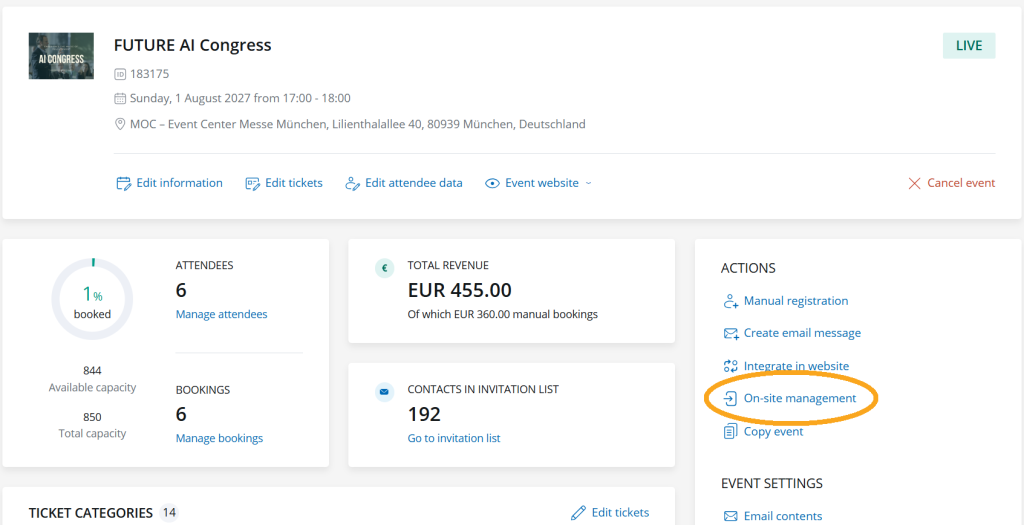
From the event overview, click the three dots next to the relevant event and select “On-site Management”, or open the event details and choose “On-site Management” under “Actions” on the right-hand side.
On the page, you will find the check-in overview:
-
Name and ID of the selected event. Using the “+ Add event” link, you can extend check-in capabilities to additional doo events. This is useful if, for example, you have created multiple doo events for the same occasion, such as one event for employees and partners and another for customers.
-
The scan and search section is located on the left-hand side and is explained in detail in section 3.3.
-
The “Settings” button allows you to select a badge design from your organization settings for all On-site Management users of this event and define whether standard doo codes or third-party codes should be scanned.
-
Using “Add attendee”, you can register attendees on site via the manual booking process if they have not yet registered.
-
The toggle “On scan, automatically check in attendees for event” allows you to automatically check attendees for the event and invalidate their tickets. If Product Check-in is enabled for your event, you can open a dropdown next to “Event” and select the product category you want to scan in the current session (see section 3.4 for details on Product Check-In). Under “More”, you can configure additional actions that should be triggered instead of or in addition to automatic check-in. By default, scanning a ticket opens the associated attendee details in the side panel. Alternatively or additionally, if a badge has been configured for the event, scanning can automatically trigger a print job. At least one of the following actions must be enabled to generate a result or action after scanning.
-
On-site metrics. The right-hand column displays the current admission metrics grouped by status. The following key figures are displayed (a detailed description of the different statuses can be found in the attendee overview article):
-
Checked In: Number of attendees whose ticket or product has already been scanned and redeemed.
-
Expected: Number of attendees with a valid ticket or product who have not yet been checked in.
-
Check-In Rate: Ratio of checked-in attendees to the total number of expected and checked-in attendees.
-
Total: Total number of attendees with either a checked-in or still-valid ticket or product.
-
The icons next to each metric open the corresponding filtered attendee list in the event’s attendee overview.
-
If Product Check-in is enabled for your event, an additional dropdown will be displayed that allows you to view statistics for a specific product category. Details on this option can be found in section 3.4.
3.2 Configuring the Scanner
Please refer to your scanner’s user manual for detailed device-specific configuration instructions. Unfortunately, we cannot provide support for individual scanner models. However, the following recommendations may help during setup:
-
If desired, configure the scanner to automatically send the Enter command after scanning a code. In technical documentation, this may be referred to as “Carriage Return and Line Feed (CRLF)”. The CRLF should be appended to the scanned value as a termination suffix.
-
If scanned values are not entered correctly:
-
Make sure the scanner language matches the input or keyboard language configured on your laptop or tablet.
-
Verify that the scanner’s encoding settings are configured correctly.
-
-
Some scanners allow you to choose between continuous automatic scanning and scanning triggered by a button press. Use the option that best fits your on-site workflow.
3.3 Checking In Attendees
3.3.1 Scanning a Ticket QR Code
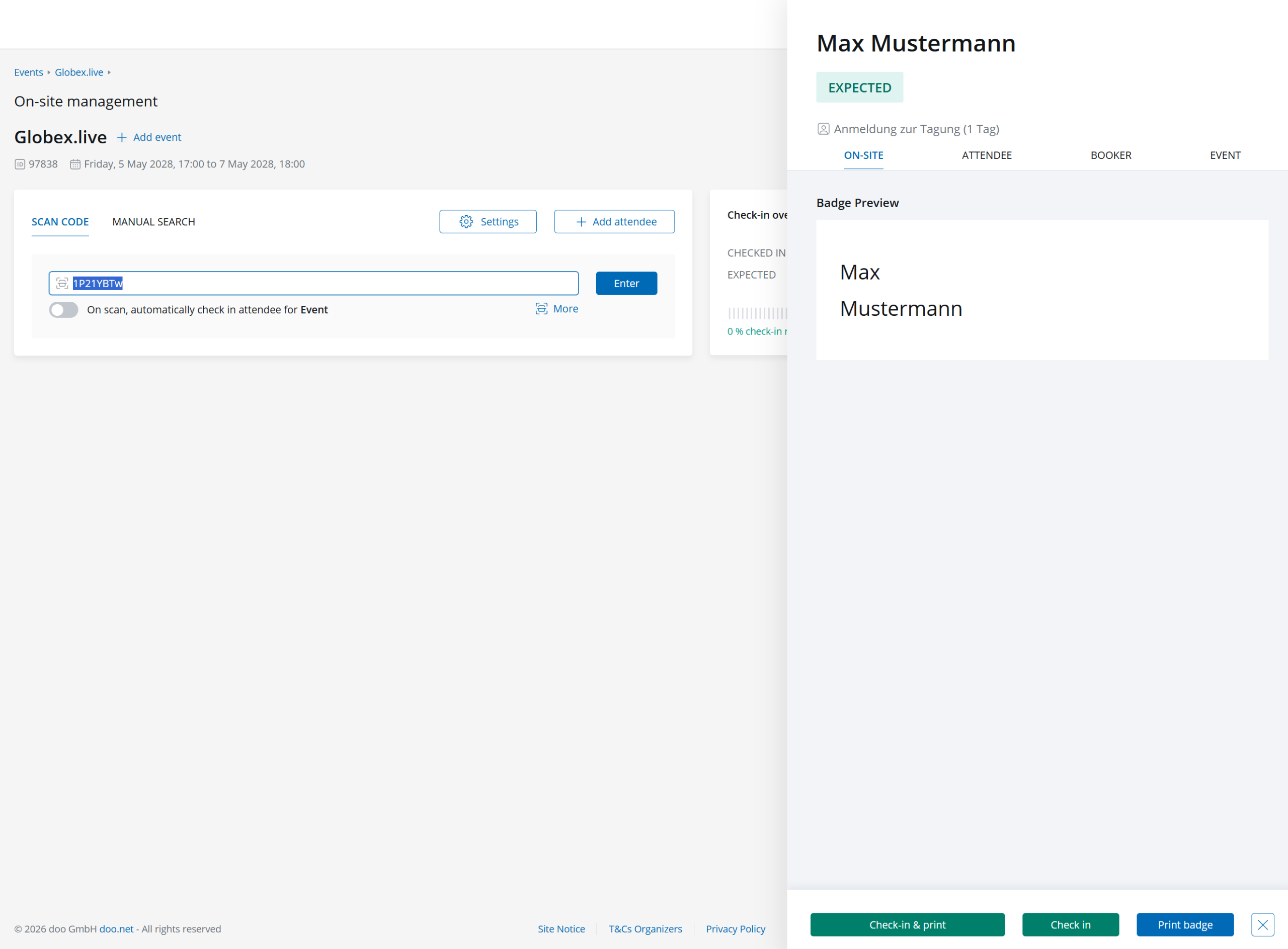
The “Scan Code” tab contains the input field for doo QR codes and doo ticket IDs. Essentially, this is a standard search field that allows you to search for an attendee using a ticket ID and check them in. For a fast and efficient check-in process, we recommend using a barcode scanner to read the value encoded in the QR code and enter it automatically. This is where On-site Management demonstrates its key strength, as attendees can be checked in within seconds.
To enable the barcode scanner to enter data, click the scan icon at the beginning of the input field or press “/” (Ctrl + 7) on your keyboard to focus the field. When you scan a QR code on an attendee ticket, the scanner enters the value into the field. Most scanners can also be configured to automatically send the Enter command together with the scanned value. This means you do not have to manually confirm each scan, as the scanner does it for you.
If the search value belongs to a valid ticket, the system will perform the actions configured under “On scan, automatically check in attendees for” and under the “More” link:
-
Automatically check in the attendee.
-
Open the attendee details in a side panel, where you can view a badge preview, attendee information, and booker information; edit the data if required; and check in the attendee and/or trigger badge printing using the buttons at the bottom.
-
Send a print job containing the attendee’s badge to the browser.
Tip: You can close the attendee details using the Escape (“Esc”) key. Alternatively, without closing the attendee details, you can press “/” to scan the next attendee.
3.3.2 Searching for an Attendee Manually
Manual search allows you to find attendees by name, organization, or email address.
This is particularly useful when an attendee has forgotten their ticket.
Once you select an attendee from the search results dropdown, the attendee details open in the side panel. If a badge has been configured, you can view a badge preview, review and edit attendee and booker information, check in the attendee, and start the printing process using the available buttons.
Tip: While in the “Manual search” tab, press “/” to focus the search field directly from the keyboard without using the mouse.
3.3.3 Errors During Searching or Scanning
When you scan a ticket or search for an attendee manually, a success message is displayed if the attendee is found and holds a valid ticket that has been redeemed through the action.
If the process cannot be completed, an appropriate error message will be shown. Possible causes include:
-
The attendee has already been checked in and the ticket has already been redeemed.
-
The attendee does not have a valid ticket or product for the currently selected checkpoint category. Only attendees with the status “Expected” can be checked in.
Other attendee statuses indicate that:
-
The booking has not been approved.
-
The booking has been rejected.
-
The booking is currently on the waiting list.
-
The booking has been removed from the waiting list.
-
The booking has not yet been paid.
-
The booking or ticket has been cancelled.
-
-
The system could not identify a unique result, so no automatic actions can be performed. Please review your input.
-
The system could not find a matching result. Please adjust your search criteria.
-
-
The scan field searches for the ticket ID. You can also search using the check-in URL, which is typically encoded in the QR code. The ticket ID can also be found in the attendee list export.
-
The manual search field searches attendee and booker names, email addresses, and organizations. The search follows the same rules as the quick search in the attendee overview.
-
3.4 Product Check-In
In addition to the standard attendee check-in at the main event entrance, On-site Management can also be used for product check-in as of September 2026. This allows products selected by attendees during the booking process to have their own dedicated check-in process. This is particularly useful if you need to verify during the event whether a person is entitled to attend a specific workshop, session, dinner, VIP package, or merchandise distribution point.
3.4.1 Activating Product Check-In for an Event
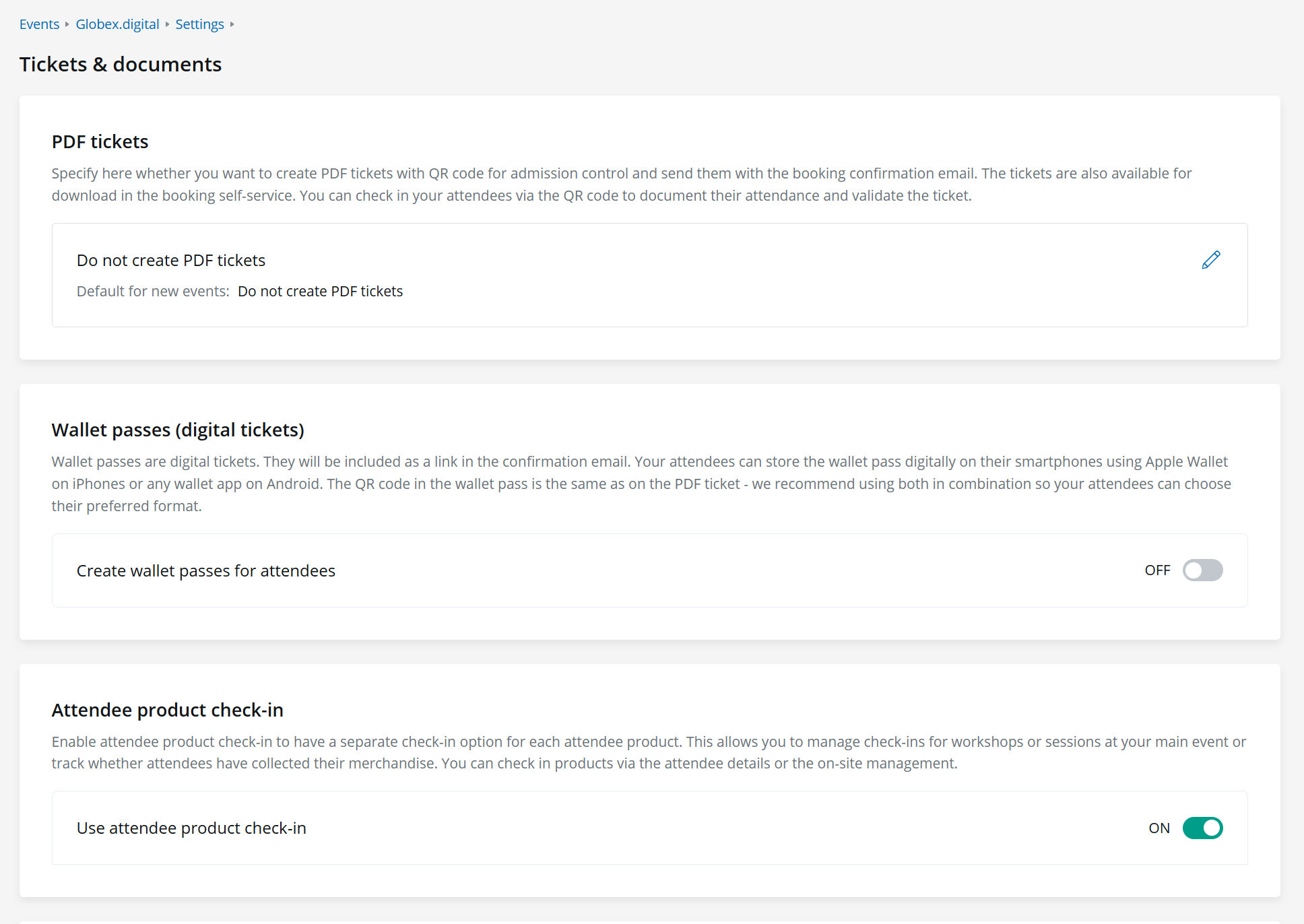
Product Check-In is disabled by default and must be enabled separately for each event. To activate it, open “Tickets & Documents” in the event settings and enable the “Use attendee product check-in” toggle. This will make the additional product check-in options available in On-site Management as well as within the attendee details.
3.4.2 Switching On-site Management to Product Check-In
Once product check-in has been enabled for the event, you can switch from the standard attendee check-in mode to product check-in mode within On-site Management. To do so, click the dropdown arrow next to “On scan, automatically check in attendees for event” and select the desired product category from the list. The automatic check-in toggle must be enabled for this option to be available. If additional events have been added to On-site Management, the associated product categories will be listed in the dropdown grouped by event.
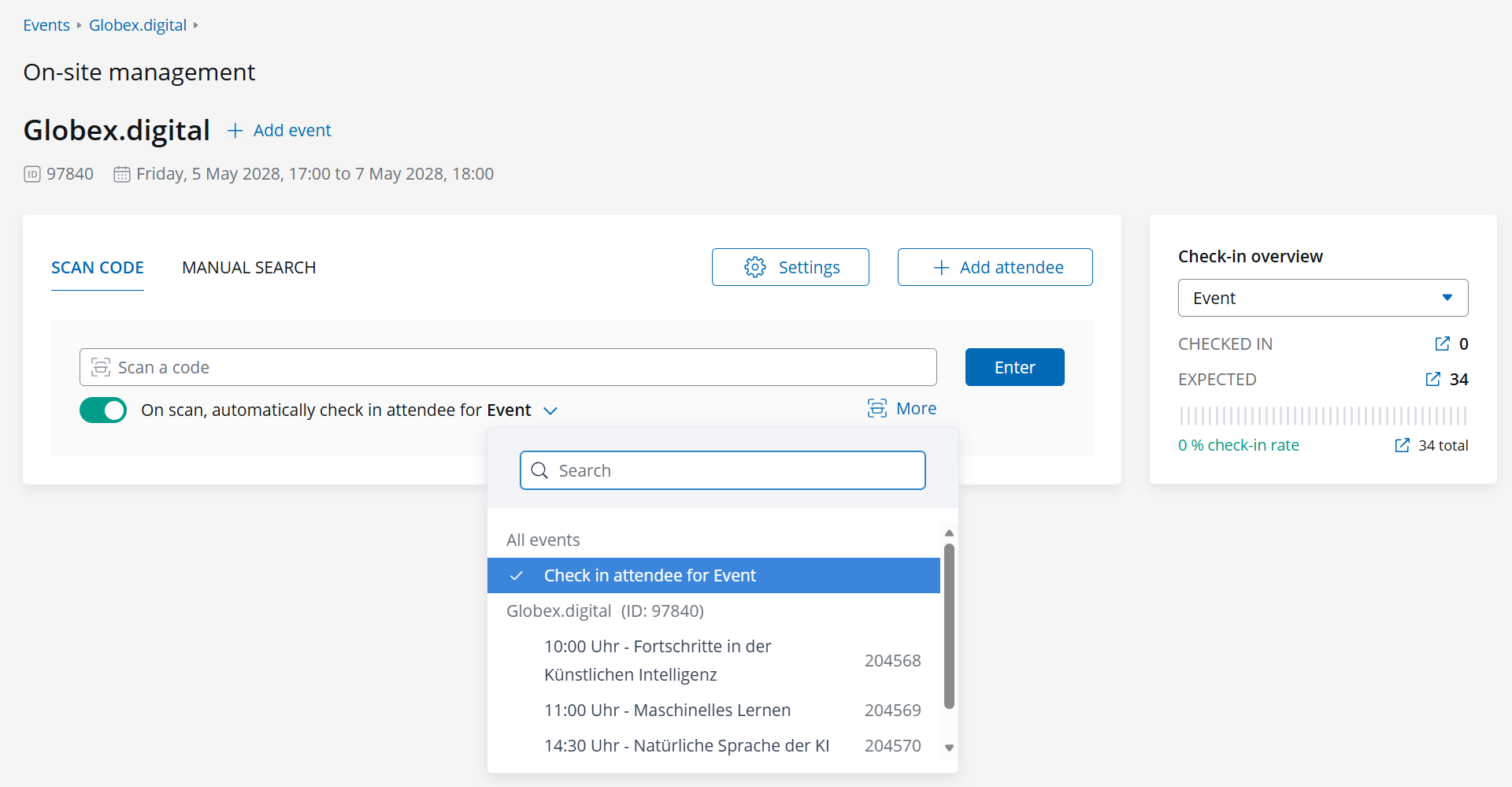
The selected product category applies only to the current scanning session on your device. This makes it possible to operate multiple checkpoints with different configurations in parallel. For example, one checkpoint may handle the standard attendee check-in at the main entrance, while separate workshop entrances perform product check-ins for their respective product categories.
Under “More”, you can also configure additional actions that should occur after a successful scan, just as with standard attendee check-in, such as opening attendee details and/or automatically printing a badge.
3.4.3 Scanning Products
To check in a product, scan the attendee’s QR code as described above or use the manual search function. The system verifies whether the attendee has a valid product belonging to the selected product category. If a valid entitlement exists, the product is checked in immediately according to your settings and, if configured, the attendee details are opened and/or badge printing is triggered.
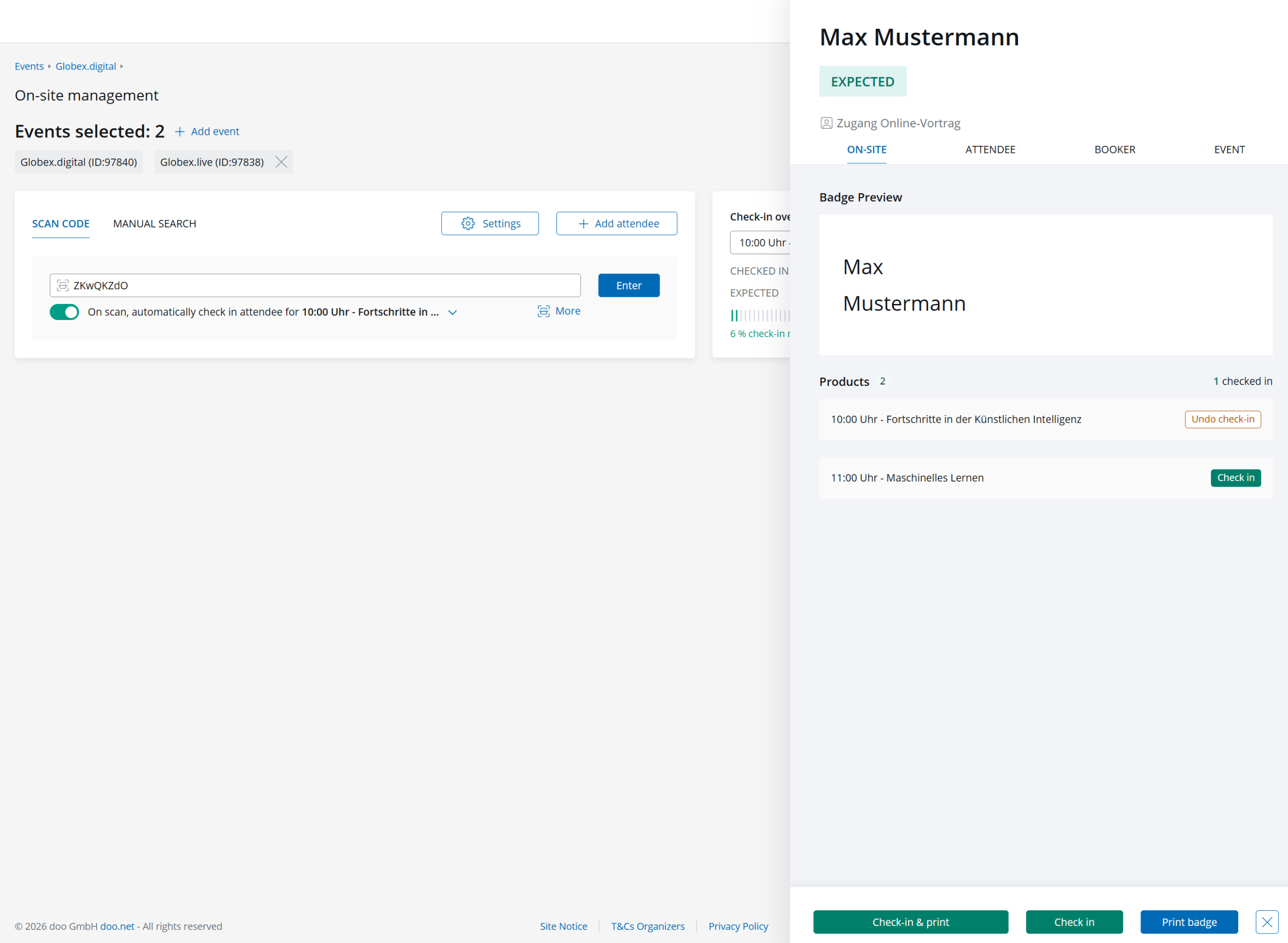
If the scanned attendee does not have a valid product in the selected category, if the product has already been checked in, or if the product status is not valid, an appropriate error message will be displayed. This allows the on-site team to immediately determine whether an attendee is authorized for the respective checkpoint or whether further clarification is required.
If attendee details are displayed in the side panel during product check-in, the “On-site” tab of the details contains a compact list of the attendee’s booked products.
-
Products with a valid status can be checked in with a single click.
-
Products that have already been checked in can be reset to “Not checked in” if required.
-
For cancelled or pending products, only the status is displayed and no check-in action is available.
3.4.4 Evaluating Product Check-Ins
If product check-in has been activated for your event, you can use the “Event” dropdown in the right-hand column to select a specific product category and view the corresponding statistics, including expected product check-ins, completed product check-ins and the check-in rate.
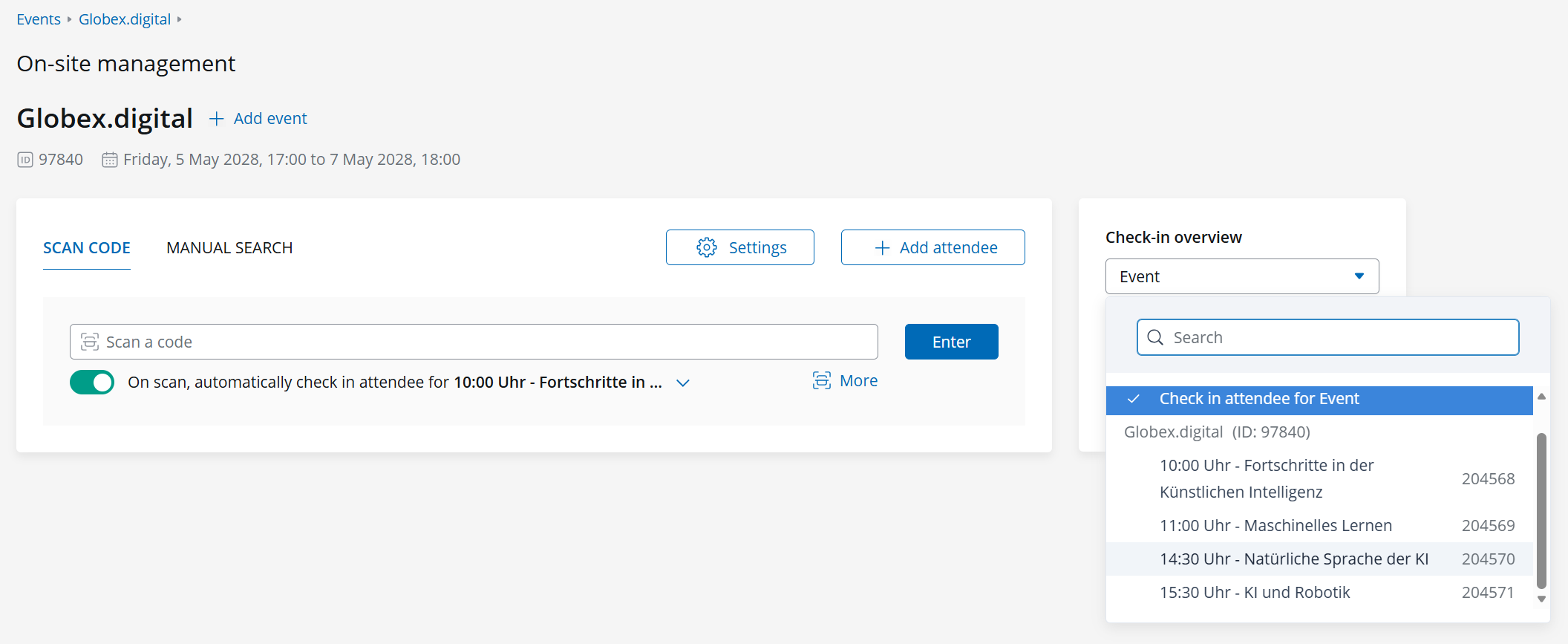
Please note that a product check-in does not change the attendee’s status. It only records the usage or check-in of the selected product category – the doo attendee status, which is displayed in the event’s attendee overview and attendee list export, is only affected by the standard attendee check-in performed through the default On-site Management settings.
At present, no export or filtering functionality is available for individual product check-in records. Product check-in information for individual attendees can currently only be viewed within the attendee details or directly in On-site Management. If you are interested in a custom evaluation, such as a report listing product check-ins per attendee, please contact your doo representative or the doo Support Team.