
Event Staff: Restricted user access for specific events
1. What is the user role “Event Staff”?
With the “Event Staff” user role, organizers can add people to their doo organization who should only have access to specific, selected events. Event Staff can only see the events they have been granted access to and—depending on the assigned access level—can view and comment on attendee data or also edit it.
Through targeted access control and data security, this role enables efficient collaboration with individuals who are not part of the organizer’s own organization. The Event Staff role is therefore suitable for check-in staff, partners, sponsors, speakers, or external project teams.
2. Permissions & Scope of the Event Staff Role
2.1 What can Event Staff see?
Event Staff can only see the menu items “Events” and “Booking Overview”. Within these sections, only the events and bookings explicitly shared with them are displayed. Menu items such as Dashboard, Contacts, Emails, Websites, or Reports are hidden for these users.
Event Staff also cannot access editing functions or settings of shared events.
2.2 What permissions does Event Staff have?
For each person in your Event Staff, you can define one of two access levels per event:
Commentator
Event Staff with Commentator rights can:
- Access the Booking Overview, Attendee Overview, and Invitation List
- Download booking and attendee exports
- Write booking comments
Read and Write Access
Users with Read and write access can additionally:
- Access Check-in Management and Manual Registration
- Edit bookings and attendee data
- Change booking status (e.g., manual approval, partial/full cancellation, mark payment as received)
- Create attendee documents and share general event documents
- Check in attendees and reverse check-ins
- Modify the invitation status of contacts on the invitation list
- Resend the last booking email
3. Adding & Removing Event Staff for an Event
- First, an administrator of your doo organization must invite the person via the User Management in the Organization Settings. Instructions for this can be found in our help center article on User Management.
- Once the invitation has been sent (you do not need to wait until it has been accepted), open the desired event from the Event Overview.
- Go to the “Event Settings” and select “Event Staff”.
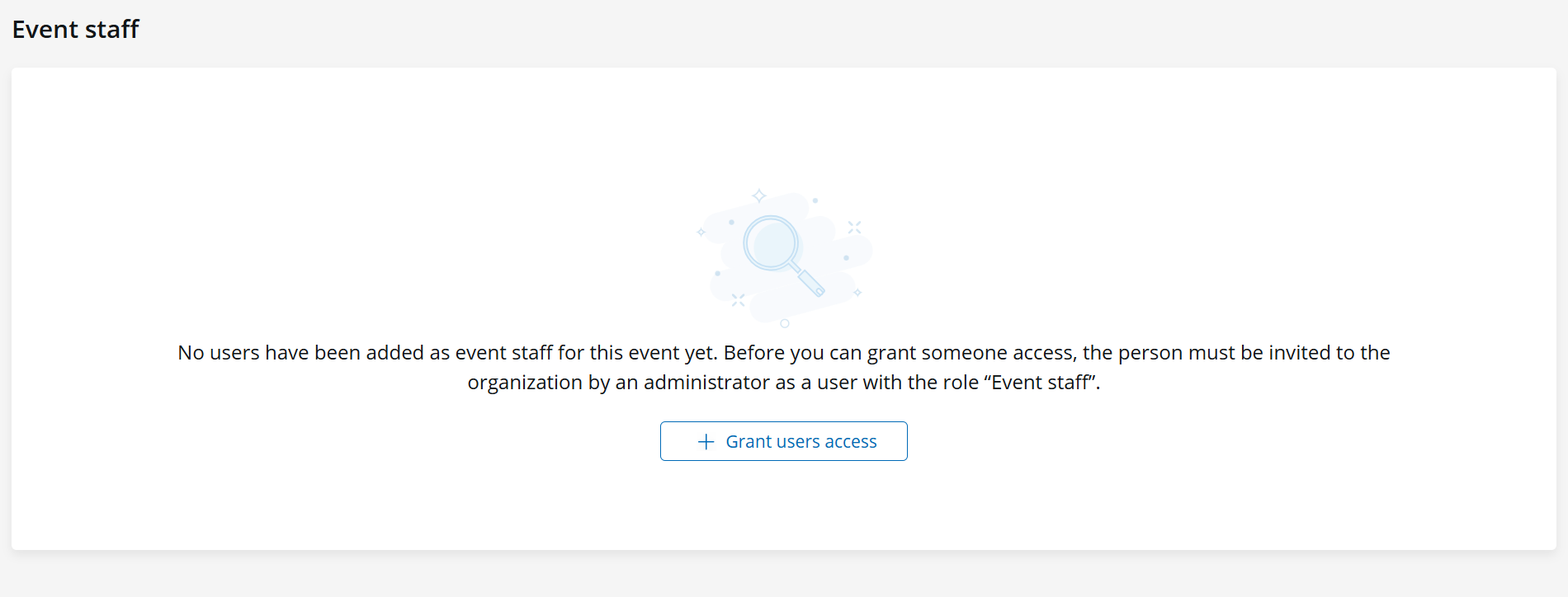
- Click “+ Grant users access”.
- Select the desired user from the list and choose an access level.

- Confirm your selection by clicking “Grant access”.
- The user immediately receives access to the event and will appear in the overview with their name and email address.
- You can view and adjust the assigned permissions at any time via the dropdown in the “Access level” column.
- To remove a user’s access to the event, click the “X” in the last column. Administrators can also revoke event access through the Organization Settings – details on this can be found in our User Management article.